Share a deck when someone needs to read along or review the manuscript. A shared view is read-only and does not automatically import the deck into the recipient's personal library.
Choose what to include
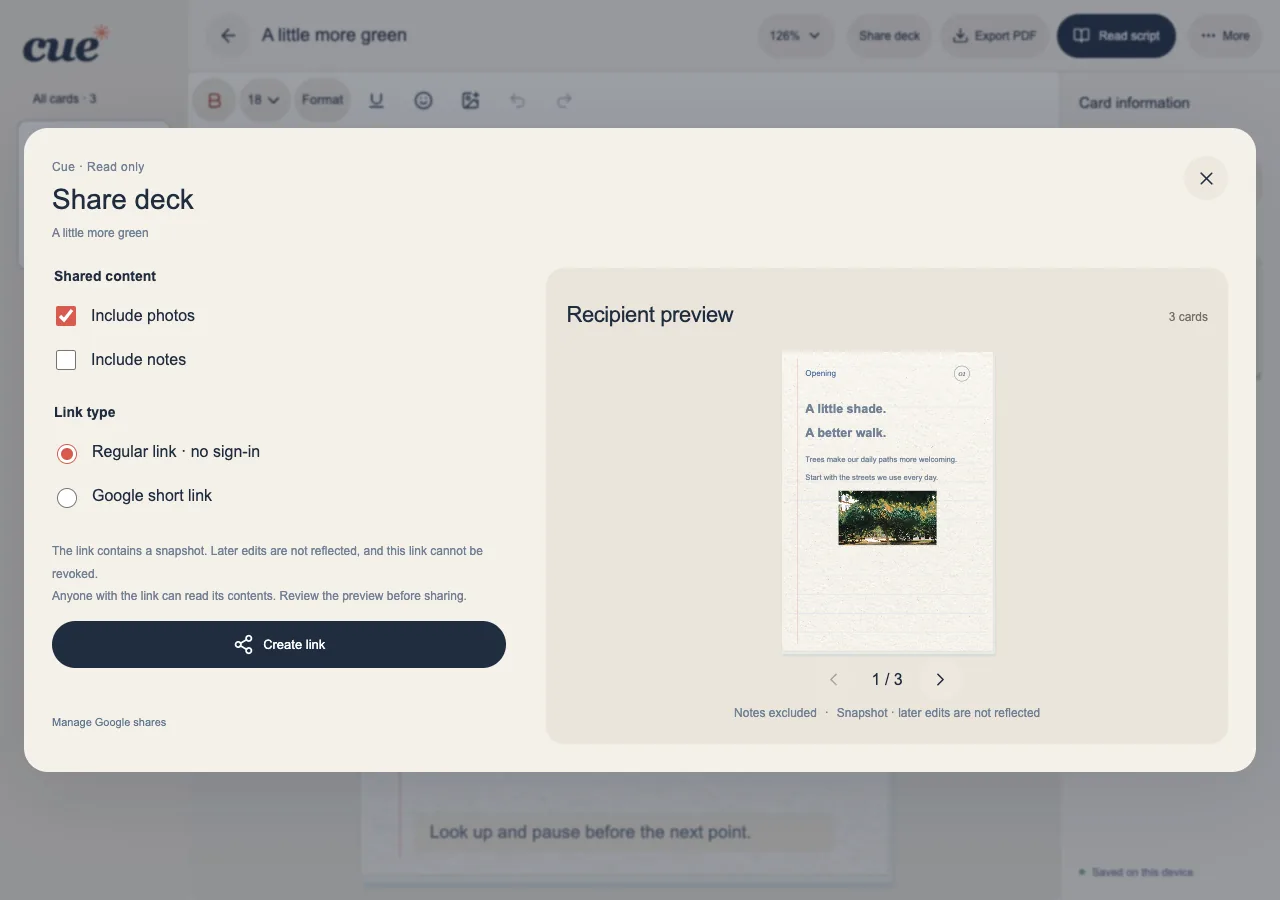
Open Share deck from the deck menu or editor. Ordinary sharing creates a snapshot of the manuscript, so later edits to your personal deck do not silently change that snapshot.
- Review the recipient preview before copying the link.
- Choose whether to include photos. Card notes are excluded unless you explicitly include them.
- Notes written into the card body are ordinary content and are still shared; review the actual preview.
Pick a link that suits the content
Regular links work without Google sign-in and carry compressed content in the link. Photos can make them long. Google short links use a published sharing copy in your Google account and require a connection to create or manage.
- Use the regular link for a compact manuscript and try opening it yourself.
- If Cue reports an oversized link, review the offered choices rather than assuming everything was included.
- For a Google short link, finish its creation and verify that the recipient can open it without your account.
Understand access and updates
Anyone with a working sharing link can read what you included. Google sharing management can revoke or delete that Google sharing copy. A regular self-contained link cannot be remotely recalled after it is sent.
- Leave out private material that the intended audience should not receive.
- Create a new snapshot link when you want to send an updated manuscript.
- Recipients can read the deck or choose Make my own cue cards to begin their own work; that action does not copy your deck.