An installed Cue shortcut can make a prepared manuscript easy to reach. Offline readiness still depends on this browser having the app and manuscript data, so test the exact device before relying on it for a talk.
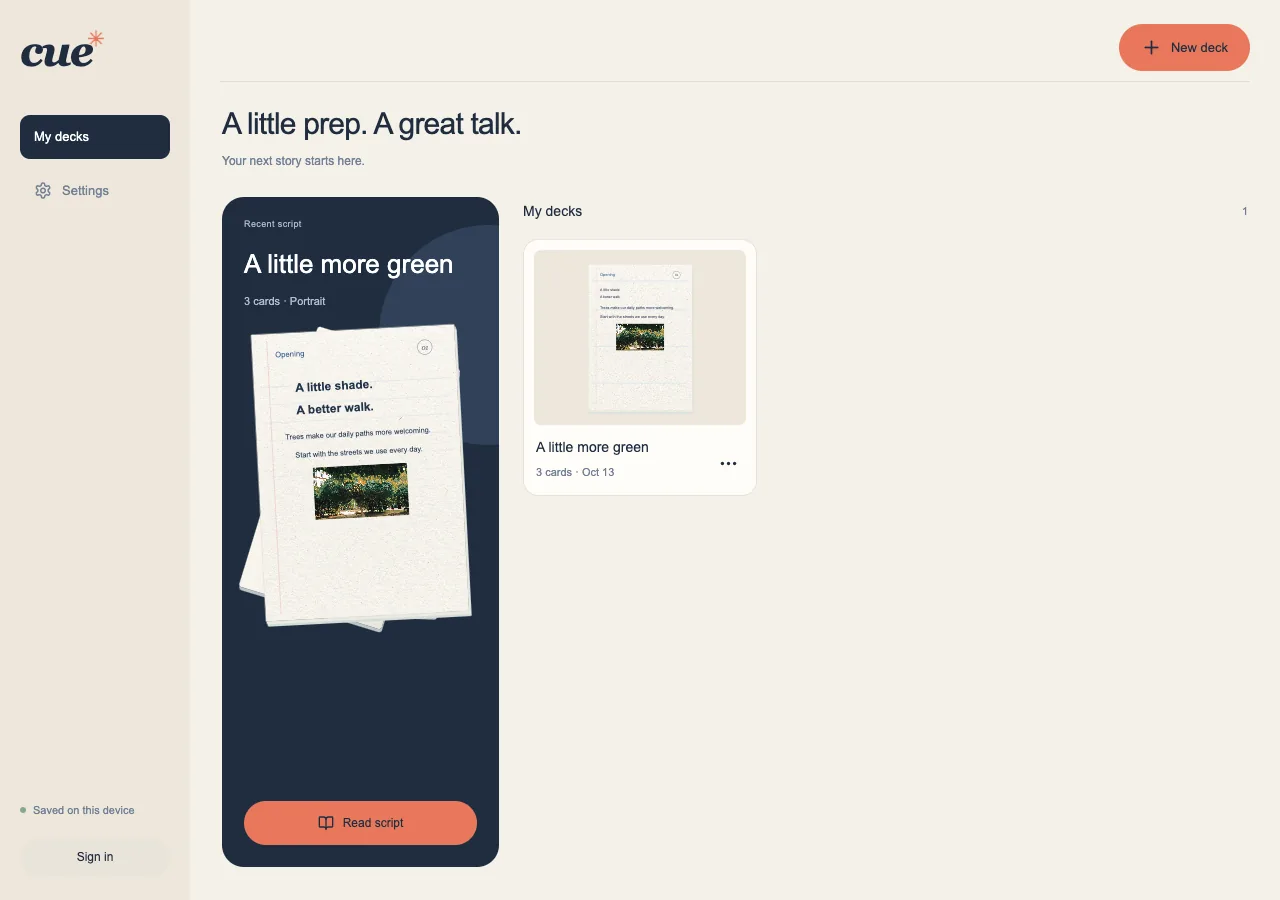
Add Cue to your device
Open Cue online first. In Settings, use Install app if available. Browser and operating-system installation menus differ; Cue shows guidance when it cannot offer a direct install prompt.
- Use your browser's Install app or Add to Home Screen option when available.
- On iPhone or iPad, open Safari's Share menu and look for Add to Home Screen.
- Open the installed app and confirm your manuscript is available there.
Prepare before disconnecting
Open the deck and its photos while online, then try reading it without a connection. A cloud-only manuscript or a Google sharing link that has never been opened is not an offline-ready personal deck.
- Wait for incoming manuscripts and photos to finish on this device.
- Open reading view and move through all the cards you need.
- Briefly test offline, then return online if you still need to sync or share.
Keep the app ready
Offline edits stay on this device until synchronization is possible. Google sign-in, Drive transfers and creating or fetching Google sharing copies need internet access. Browser data deletion can remove local manuscripts and cached files.
- Keep a backup before clearing app or browser data.
- Use Settings to check the app version when online.
- Finish reading and let changes save before applying an available update.