A useful cue card gives you enough detail to keep going without making you search through a wall of text. Start with your main point, then add only the reminders and images that help you deliver it.
Shape the words
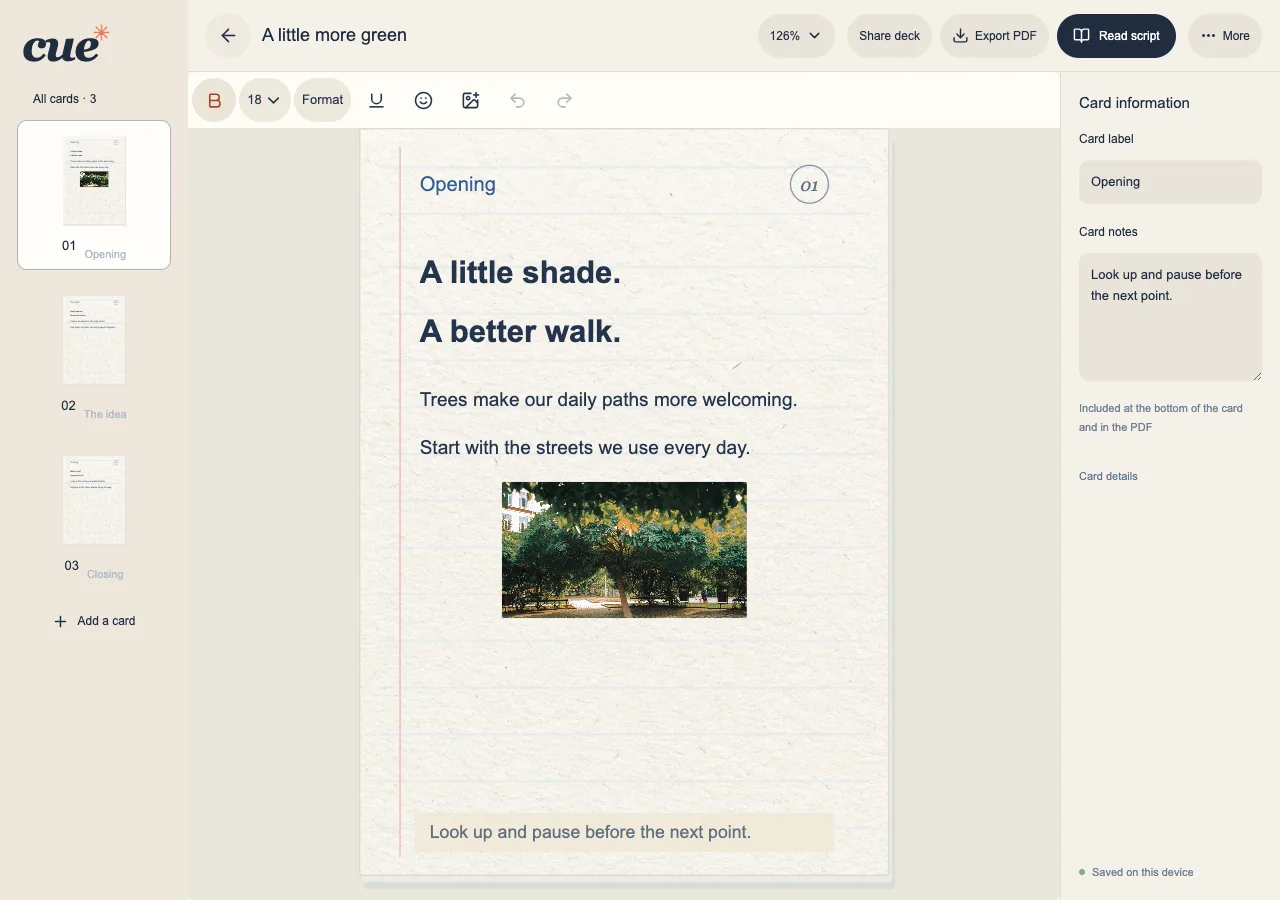
Open a deck for editing. The editor supports text formatting, font and size choices, and emoji. Preview the result on the actual card instead of assuming it will fit because the text field accepts it.
- Write one idea or short passage per card.
- Select text before applying formatting to that selection.
- If content runs beyond the card, shorten it, reduce the selected text size, or use Split here to continue on another card.
Add a photo with a purpose
A photo can provide a visual reminder or illustrate the story. Cue accepts JPEG, PNG and WebP photos and keeps their proportions when resizing.
- Place the cursor and choose the photo insertion control.
- Choose a photo, preview it and insert it into the card.
- Select the inserted image to adjust its width or alignment and provide alternative text.
Check the sequence and notes
Use the card list to inspect the order before rehearsing. Card notes appear at the bottom of the card and in the PDF. The sharing panel lets you choose whether to include these notes in the shared copy.
- Move cards earlier or later to give the story a clear flow.
- Use card labels to recognize sections without rewriting the whole passage.
- Review the direction-change preview for wrapping and overflow before applying portrait or landscape.