A paper copy can be useful at a lectern, during rehearsal, or as a backup for a talk. Cue exports each card onto its own PDF page using your deck's portrait or landscape direction.
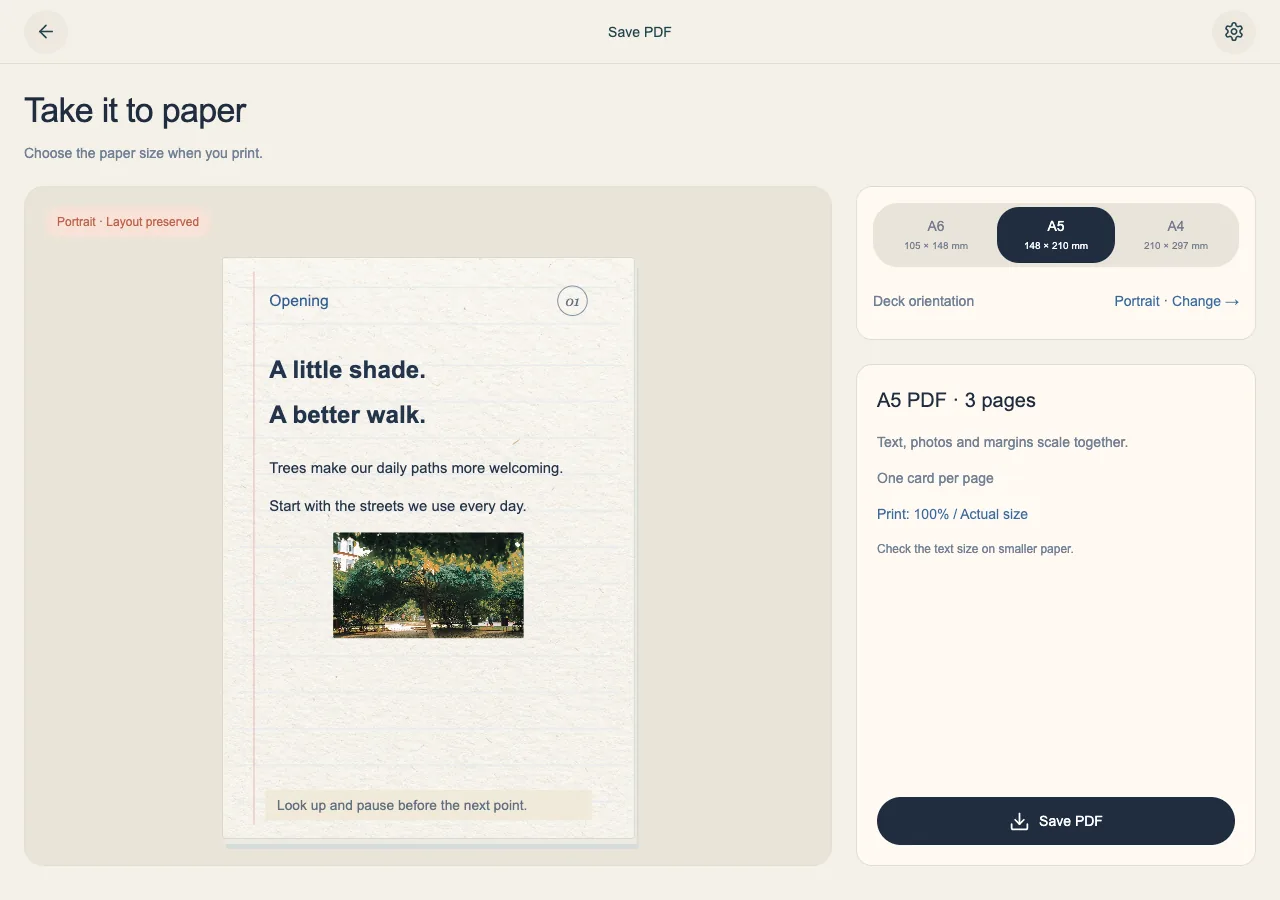
Prepare the cards for output
Read through the deck and check the visible card boundary. Extra content outside it is not a safe way to extend a printable page. Cue stops export for overfull cards or unavailable images rather than silently producing an incomplete result.
- Check every card for overflow and missing photos.
- Split crowded text into another card or adjust it until it fits.
- Review visible card memos, which are included at the bottom of the card and in the PDF.
Choose the paper size
Open Export PDF from the deck actions. A4, A5 and A6 control output size; choosing a paper size does not redesign your editor canvas. Text, images and margins scale together.
- Choose the size that matches the paper you plan to use.
- Check the preview and save the PDF.
- Open the downloaded file and inspect all pages before printing.
Print a readable copy
Smaller paper also means smaller text. The PDF preserves the appearance of fonts, emoji and photos as page images, so its text is not selectable like an ordinary text document.
- Choose matching paper and Actual size or 100% in the print dialog.
- Print one sample page and check the text at your speaking distance.
- Keep the Cue manuscript or a JSON backup for future editing; the PDF is the reading and print output.