Local saving, a downloaded backup and Google synchronization serve different purposes. Local saving keeps work in this browser. A backup is a separate recovery file. Sync helps the same account continue across devices.
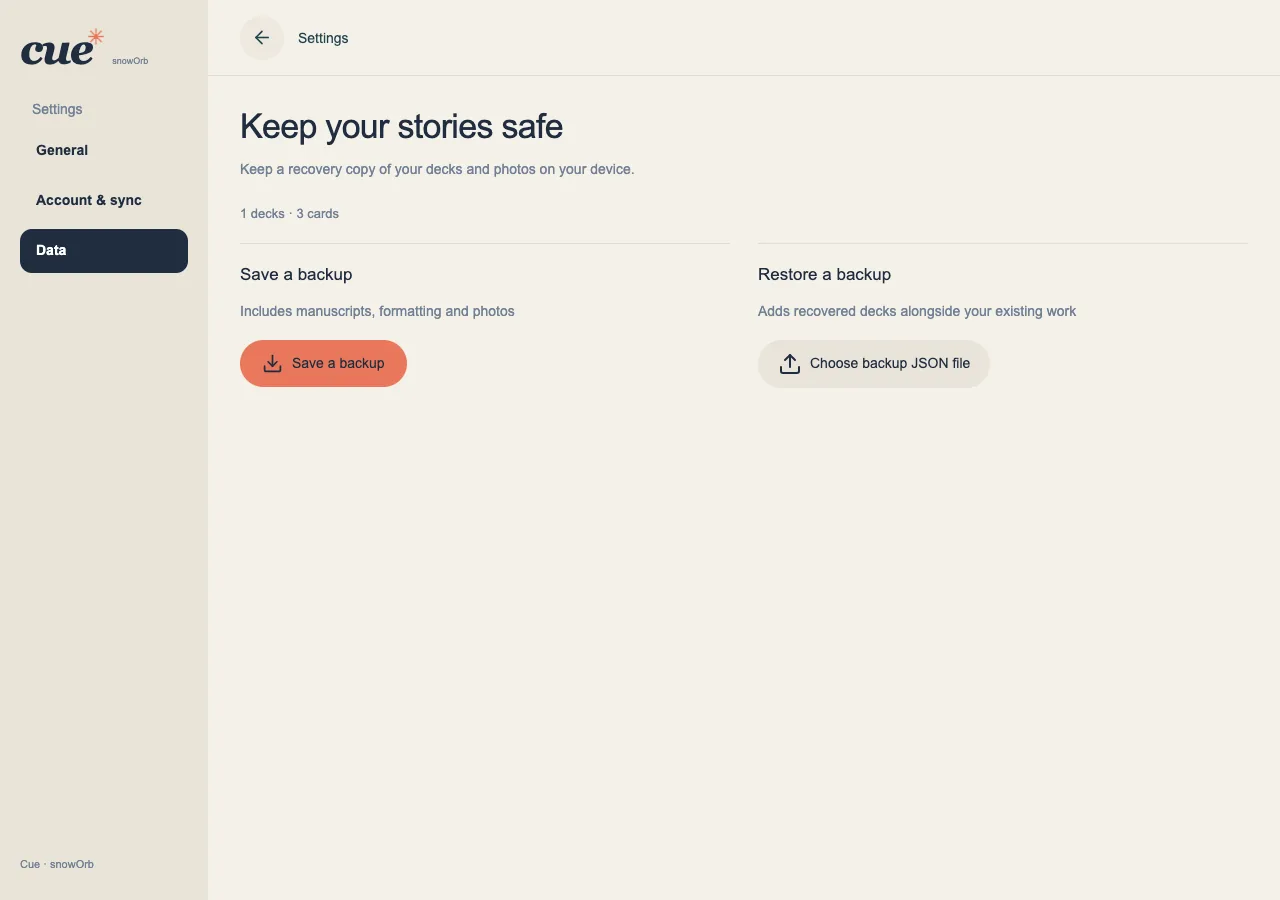
Keep a recovery file
In Settings → Data, save a backup of your manuscripts. A complete Cue backup includes formatting and photo bytes. Keep the file somewhere you can access if this browser's data is lost.
- Wait for local saving to finish, then choose Save a backup.
- Confirm the downloaded JSON file is present before clearing browser storage.
- Use Restore a backup to add recovered copies alongside existing decks; it does not replace them.
Connect the same account on each device
Settings → Account & sync connects Google Drive. All manuscripts in the connected account workspace synchronize automatically, including new manuscripts. Cue must be open and connected to send pending work; it does not promise background uploads after the browser closes.
- Read the connection explanation before signing in; eligible local manuscripts can be adopted by the first connected account.
- Use the same Google account on the other device and allow the incoming work to finish.
- Check the account's sync status and pending photos, not just whether sign-in succeeded.
Respond to a sync or save warning
An expired Google connection and a failed local save are different situations. A connection issue can leave changes waiting to send. A local-save failure requires protecting the latest draft before closing or resetting anything.
- Reconnect the same account or retry a transfer when the account panel requests it.
- If saving on this device fails, keep the tab open and use the recovery options or backup first.
- Use Open Drive folder to inspect Cue's verified folder. Do not delete cloud files as a routine way to fix a sync warning.